How to Play — Setup Tutorial
Follow these steps in order the first time you set up. Steps 4 and 6 are marked every session — do those two every time you play, not just once.
1. Download & install Steam
Go to store.steampowered.com and download Steam for your device. Run the installer and follow the prompts. Skip this step if Steam is already installed.
steam-download-install.pngscreenshot pending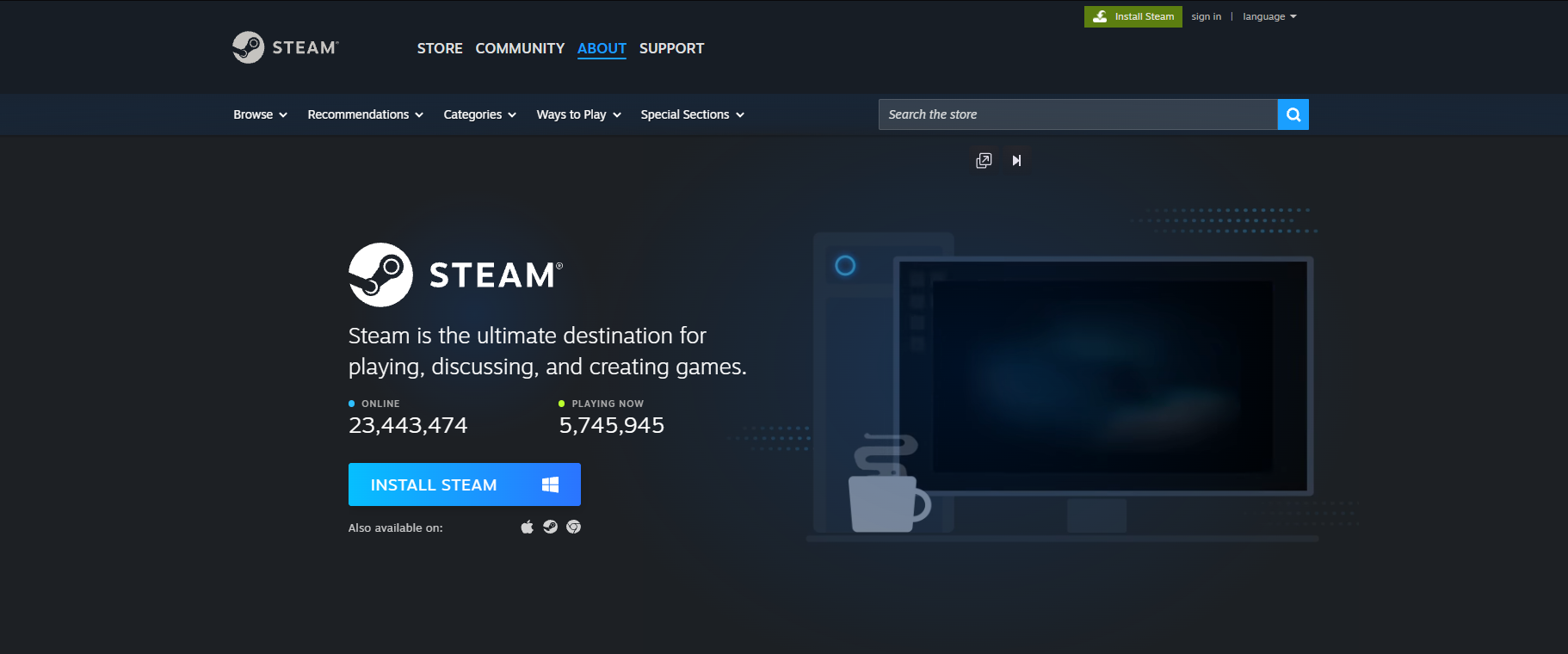
2. Log in with the provided account
- Open Steam and click the + button to add an account.Steam login screen — click + to add an account
steam-open-add-account.pngscreenshot pending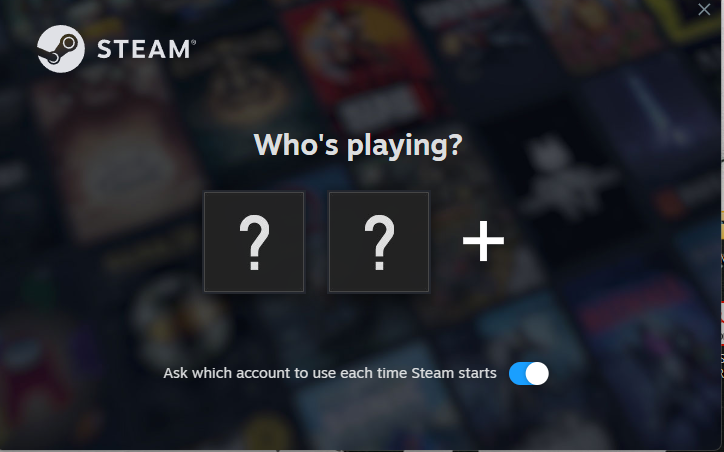
Steam login screen — click + to add an account - Log in with the username and password we provided — not your own personal Steam account.Enter the provided username and password
steam-login-screen.pngscreenshot pending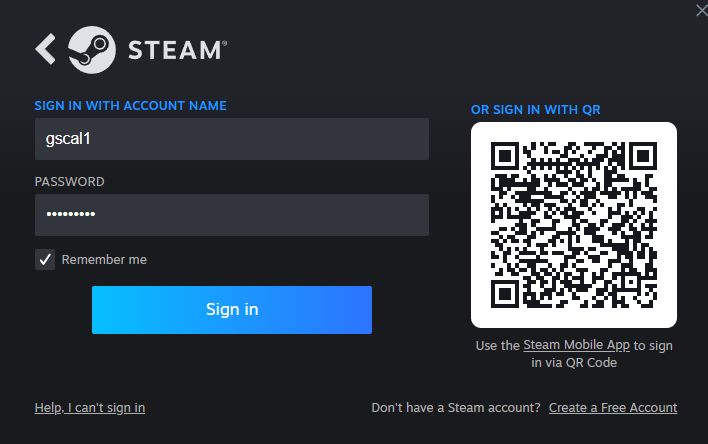
Enter the provided username and password - Steam will ask for a Steam Guard code. Go to our lookup page, enter your Shopee Order ID and Steam username, and click Get Code.gameshare.space — enter your Order ID + Steam username, click Get Code
gameshare-code.pngscreenshot pending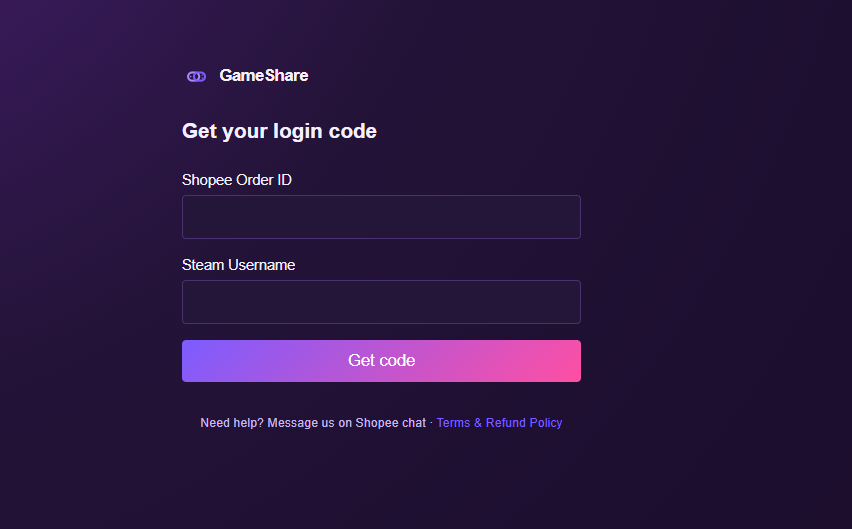
gameshare.space — enter your Order ID + Steam username, click Get Code - Copy that code and enter it into Steam to finish logging in.Enter the Steam Guard code from the lookup page
steam-guard-code-entry.pngscreenshot pending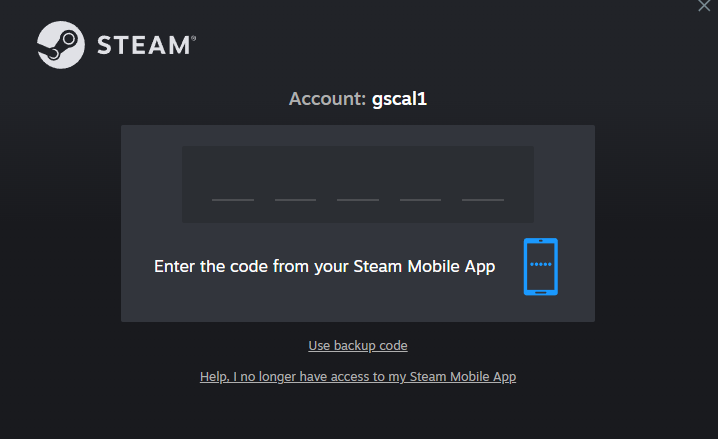
Enter the Steam Guard code from the lookup page
Codes expire quickly — get a fresh one each time you log in, don't try to reuse an old one.
3. Install the game
- Open your Library and click the game.Find the game in your Steam Library
library-find-game.pngscreenshot pending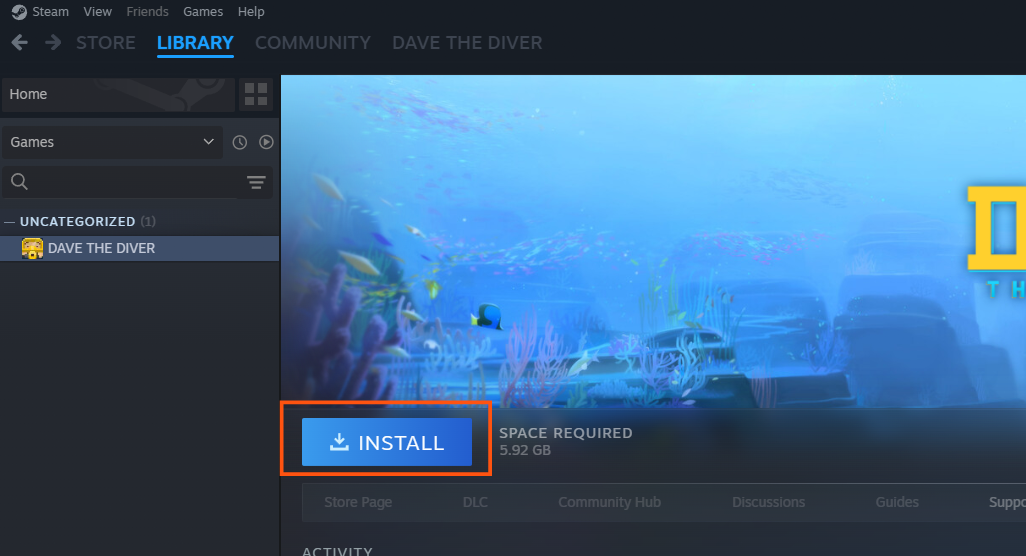
Find the game in your Steam Library - Click the small dropdown arrow next to the button and choose “This device”. If the button just says “Stream” or “Connect” and you click it directly, it will try to stream instead of installing — always check the dropdown first.
- Choose an install location and confirm. The game will start downloading — you can move on to step 4 while it downloads.Confirm install location and start the download
library-install-progress.pngscreenshot pending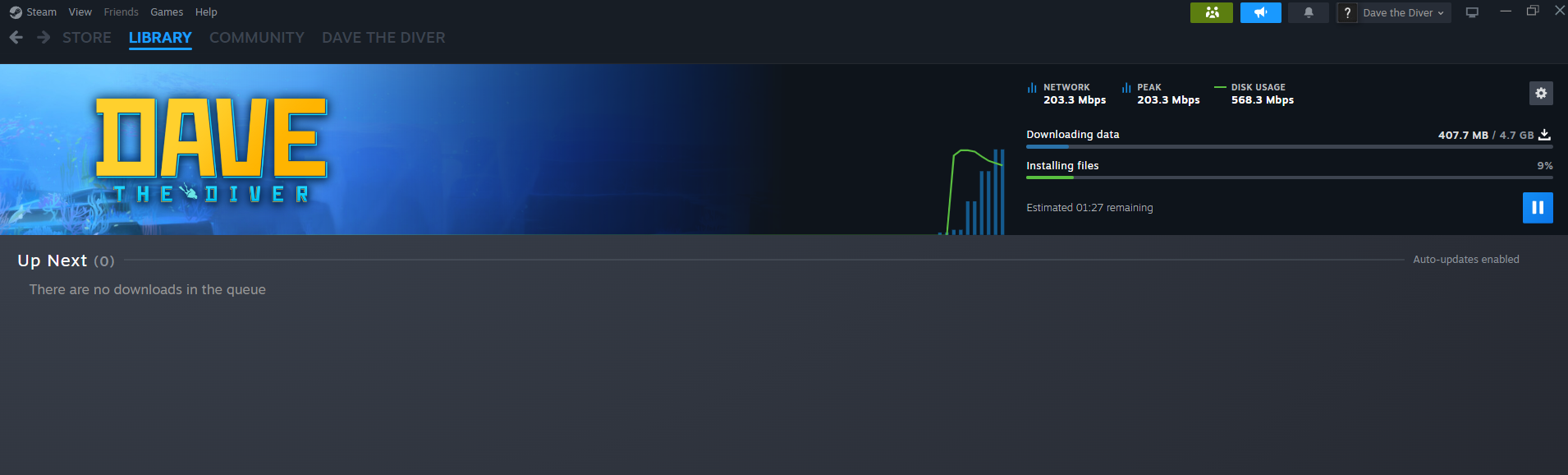
Confirm install location and start the download
4. Disable Steam Cloud — every session
Why this matters: this account is shared with other buyers. If Steam Cloud stays on, whoever plays most recently has their save pushed to the cloud — which can silently overwrite another buyer's save. Turning it off before you play protects your progress and everyone else's.
- Open Steam Settings and go to the Cloud section.Steam Settings → Cloud
steam-settings-cloud-tab.pngscreenshot pending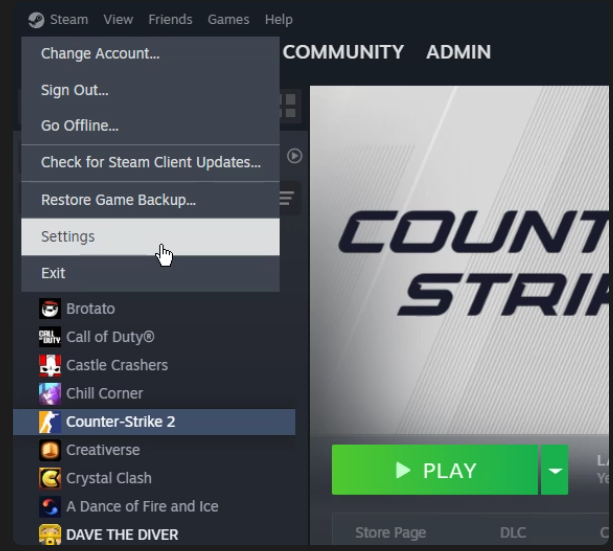
Steam Settings → Cloud - Turn off “Enable Steam Cloud” for this game.Turn off the Enable Steam Cloud toggle
cloud-toggle-off.pngscreenshot pending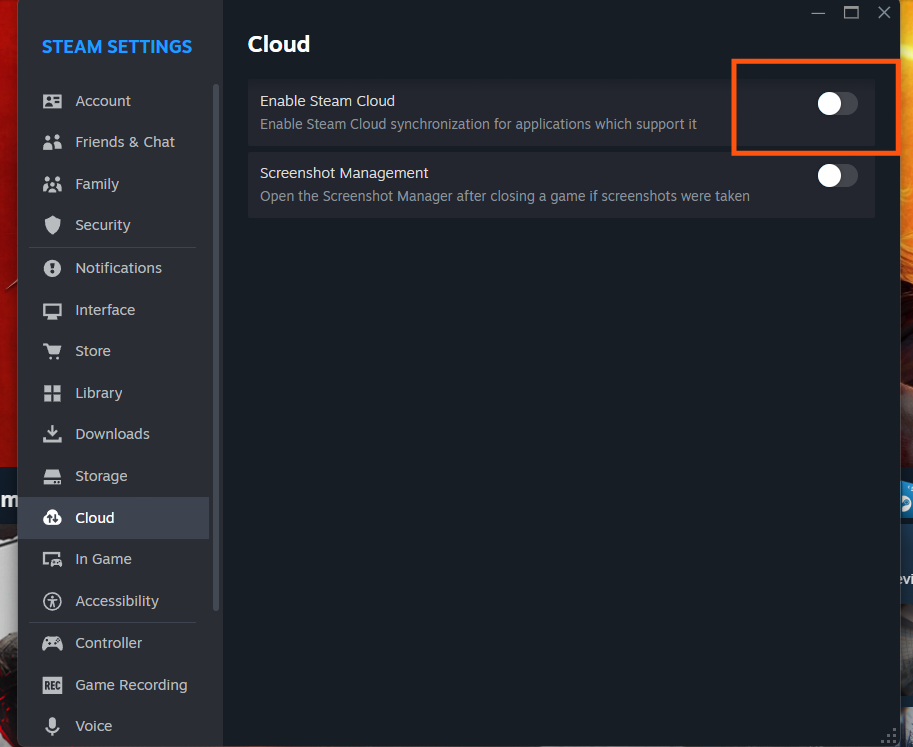
Turn off the Enable Steam Cloud toggle - Confirm it worked: the “Cloud Status” label on the game should disappear from your Library.✅ Cloud Status is gone — you're safe to play
cloud-status-disappeared.pngscreenshot pending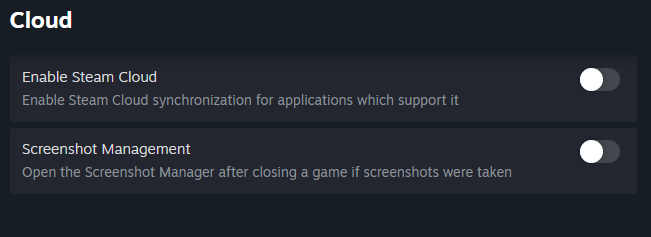
✅ Cloud Status is gone — you're safe to play ❌ Cloud Status still showing — repeat steps 1–2cloud-status-still-exists.pngscreenshot pending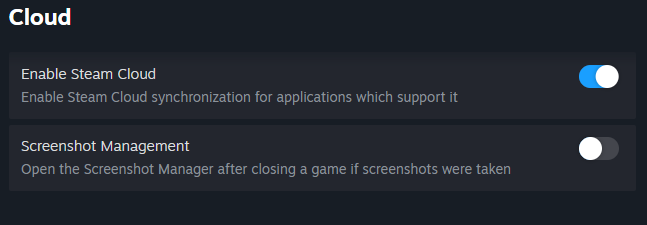
❌ Cloud Status still showing — repeat steps 1–2
5. Activate the game (first time only)
- Once installed, click Play.
- Confirm you're launching on This device.Confirm launching on This device
this-device-confirm.pngscreenshot pending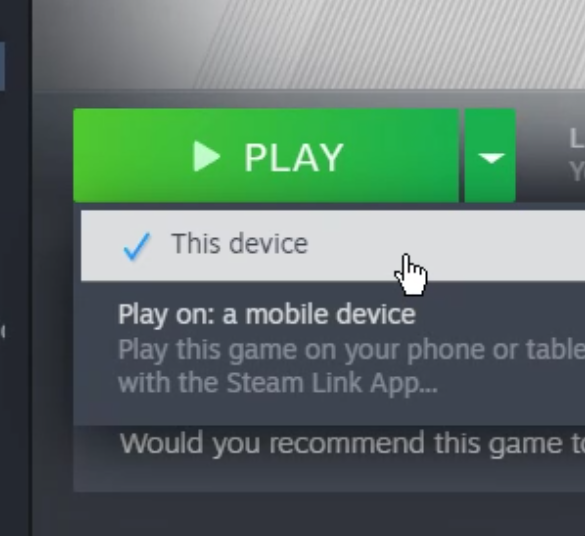
Confirm launching on This device - Wait for the game to reach its main menu — this activates it on the account. Then close it with Alt+F4 and confirm the exit prompt.
6. Play in Offline Mode — every session
Once the game has finished downloading, go offline before every session — not just the first time.
- Click “Steam” at the top-left corner of the Steam window.1. Click the Steam menu (top-left)
steam-menu-open.pngscreenshot pending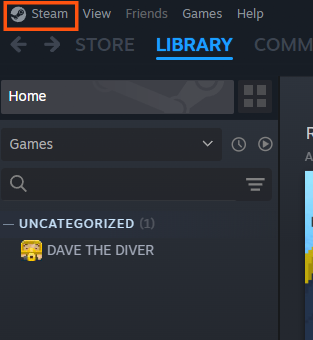
1. Click the Steam menu (top-left) - Then click “Go Offline…”.2. Then click Go Offline…
steam-menu-go-offline.pngscreenshot pending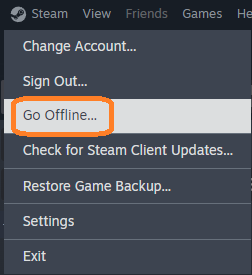
2. Then click Go Offline… - Confirm the offline indicator before launching anything.✅ Offline Mode confirmed — safe to launch
offline-indicator-confirmed.pngscreenshot pending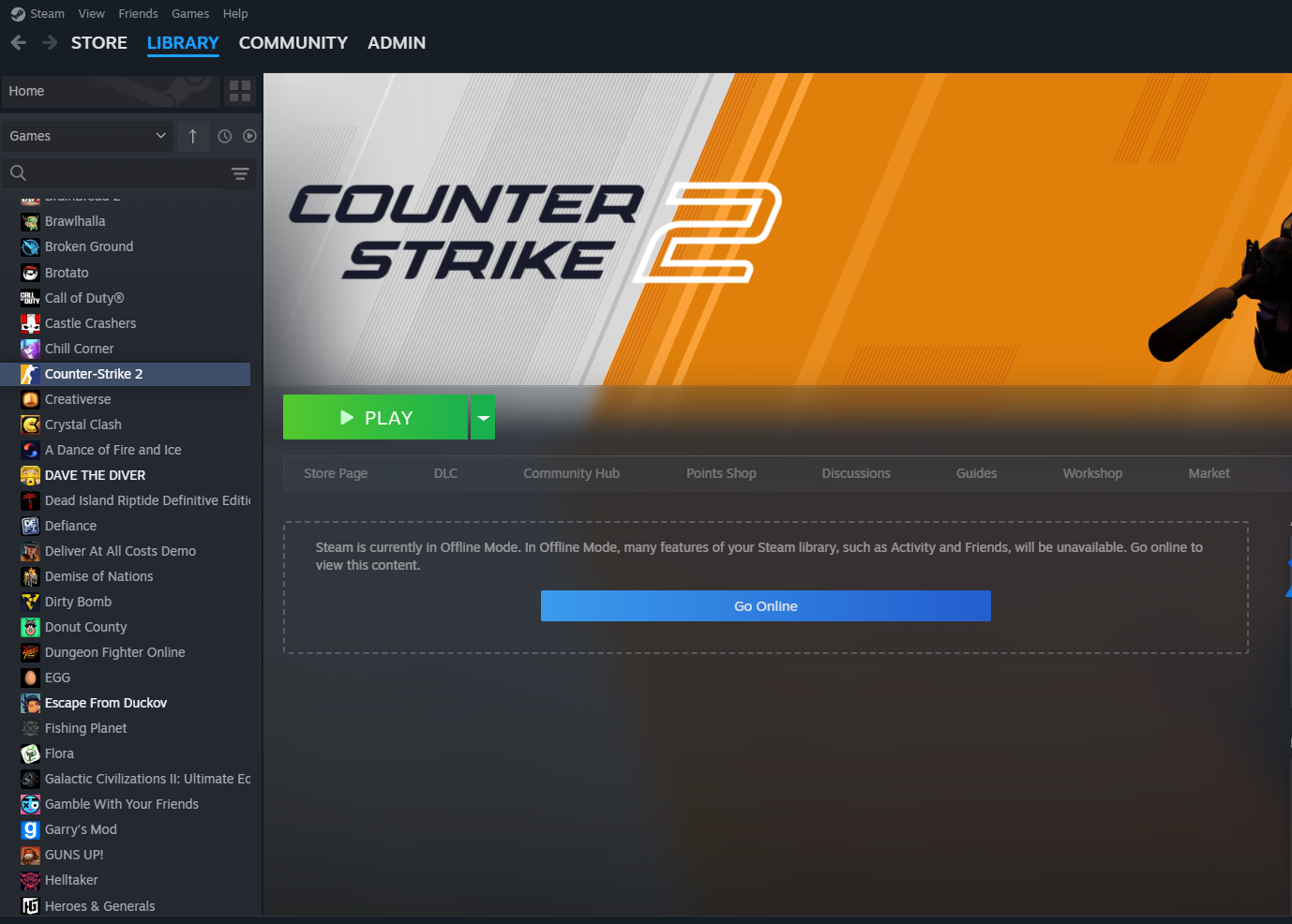
✅ Offline Mode confirmed — safe to launch ❌ Still online — repeat step 1, don't launch yetoffline-indicator-still-online.pngscreenshot pending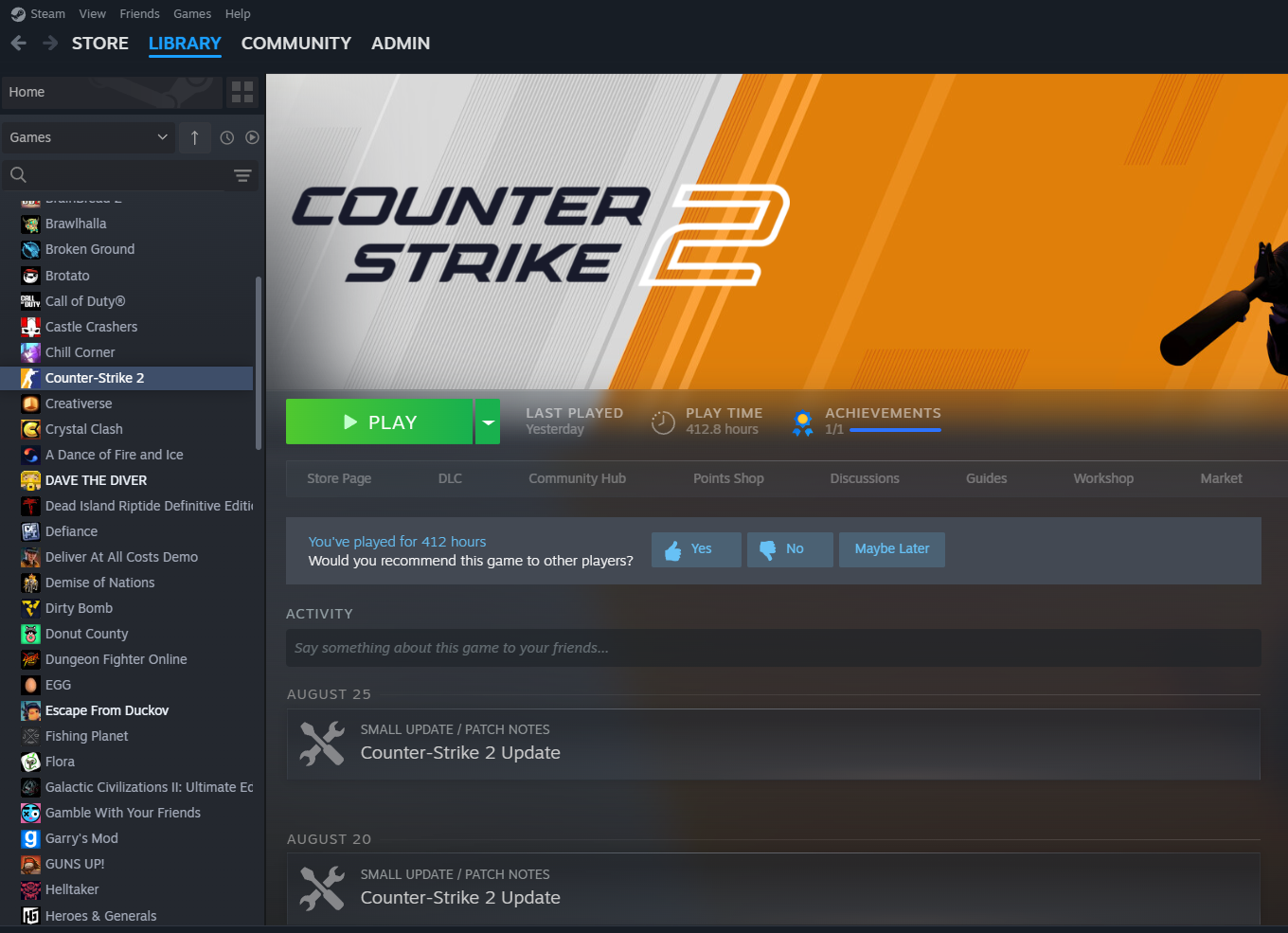
❌ Still online — repeat step 1, don't launch yet
Make sure the game isn't already open while you switch to offline mode — close it first, switch, then launch.
That's it — you're all set. Enjoy the game!
play-game.pngscreenshot pending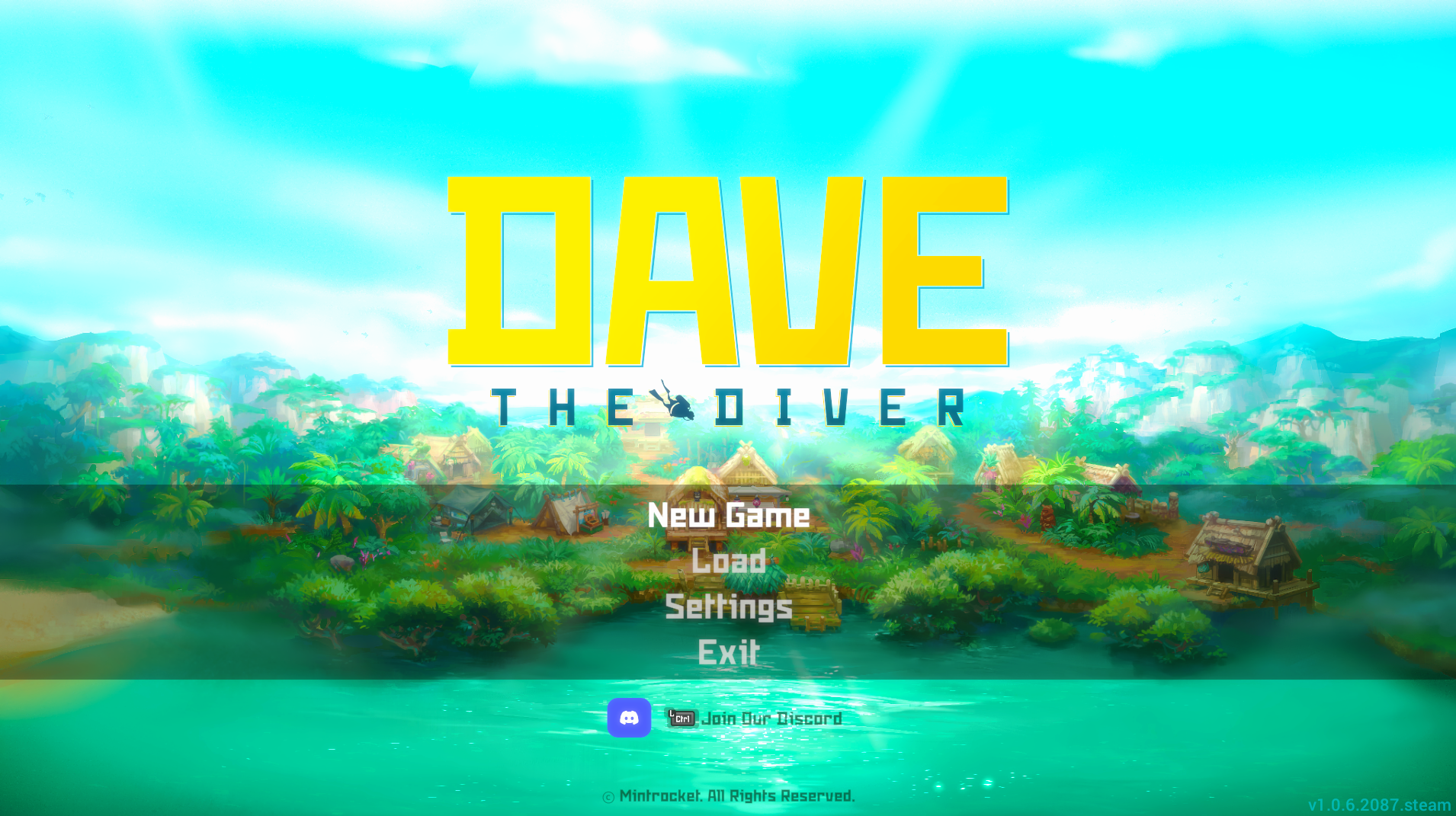
7. Troubleshooting
Seeing “Library locked” or “In use by a family member”? Open the scenario that matches what you see. (A screenshot of this error, and one for each scenario below, will be added here later.)
Scenario 1 — This is my first time activating this game
Someone else on the account is currently playing a different game. Wait until the account is free, then follow step 5 (Activate the game) again.
If it's urgent, message us on Shopee chat with your Order ID and we'll check availability.
Scenario 2 — I already activated this game before, and it's locked again
Another buyer is using the account right now. Close Steam, wait a few minutes, then get a fresh code from the lookup page and log in again.
Scenario 3 — I've already set everything up and gone offline before, but it's still locked
Make sure you actually went offline (step 6) before opening the game — if Steam is online, the account looks “in use” to Steam even if no one else is actively playing. Go offline first, then launch.
Still stuck after that? Message us on Shopee chat with your Order ID — don't rush to leave a bad rating, we can usually fix this within minutes.
Scenario 4 — I can't log in at all
Double-check the username and password are exactly what we gave you — not your own personal Steam account. If those are correct and it still won't log in, the account may be overloaded (too many buyers on it right now).
Message us on Shopee chat with your Order ID. We'll assign you a different account for the same game — you'll get new login details, but your Order ID stays the same.
8. FAQ
- Can I play at the same time as another buyer?
- No — this is a shared account. If two people try to play at once, one gets logged out. Not a bug.
- My save is missing — what happened?
- Almost always Steam Cloud was still on. See step 4 — disable it every session to protect your progress.
- Do I need a new code every time I log in?
- Yes. Get a fresh Steam Guard code from the lookup page each time — old codes expire.
- Can I change the account password or turn off Steam Guard?
- No — that locks everyone else out, including you next time. See the Terms & Refund Policy.
- The account shows banned or unavailable — now what?
- Message us on Shopee chat with your Order ID. See the Refund Policy for the replacement/refund timeline.